Maximo Manage 9.x Deep Dive: Work Queues, Formulas, Job Plans, and AI Configuration
A technical exploration of the most important Maximo Manage features in MAS 9.x, including Work Queue Manager, formulas, job plan enhancements, AI configuration, and the expanded Tools API.

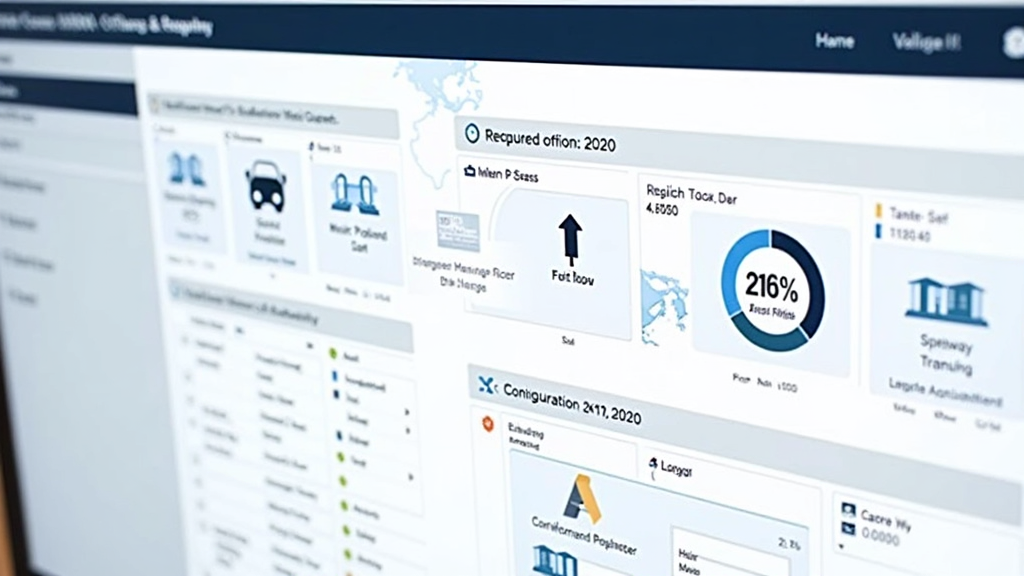
Maximo Manage 9.x Deep Dive: Work Queues, Formulas, Job Plans, and AI Configuration
Maximo Manage remains the operational backbone of IBM Maximo Application Suite. While newer components such as Health, Predict, and Mobile capture attention, most maintenance organizations still spend the majority of their day inside Manage: creating work orders, assigning labor, issuing materials, closing purchase orders, and recording failures. The 9.x release line did not redesign Manage from scratch, but it did add a set of focused capabilities that make the application more configurable, more connected, and more intelligent. Understanding these changes is essential for any team that wants to get more value from their existing Manage investment without replatforming their entire maintenance process.
The standout additions in Manage 9.0 and 9.1 include the Work Queue Manager, the Formulas application, enhanced Job Plans with qualifications and milestones, and a new AI Configuration application. MAS 9.2 built on that foundation with alert management, alert insights, calibration enhancements, custom shell scripts in customization archives, and more granular time zone processing rules. Many of these features are additive, which means they can be adopted incrementally, but they also introduce new configuration objects, new relationships, and new testing requirements.
This article examines the Manage capabilities that matter most for production environments. We will look at how Work Queue Manager changes the way teams prioritize work, how the Formulas application reduces the need for custom code, how Job Plans and Routes became more expressive, how AI features are configured and consumed, and how the Tools API is reshaping build governance. Each section includes practical guidance and examples that you can adapt to your own environment. The goal is to help you plan a Manage upgrade or feature rollout with confidence, knowing which capabilities are ready for prime time and which require careful testing.
The Manage Layer in a Unified Suite
In MAS 9.x, Maximo Manage is no longer an isolated EAM application. It shares authentication, navigation, dashboards, and data services with the rest of the suite. That integration changes how administrators think about configuration. A system property set in Manage can affect mobile users. A work order created in Manage can trigger a Health score update. A route updated in Manage can appear on a dispatcher's Gantt chart. The boundaries between applications are becoming thinner, which is good for user experience but requires tighter governance.
One of the most visible integration points is the Operational Dashboard. Maintenance managers can now create personalized dashboards and manage access to them. Work queues relevant to the logged-in user appear on cards, and sorting or filtering the queue saves as a personalized view. This is a meaningful shift from the classic Start Center model, where every user saw a largely static set of portlets. The new dashboard model supports role-based entry points and in-application tours, such as the guided tour for adding a card to the Operational dashboard introduced in Manage 9.0.
For administrators, the unified suite means that changes in one area can have side effects elsewhere. Adding a new object formula in the Formulas application might seem like a Manage-only change, but if that formula drives a dashboard KPI consumed by mobile technicians or reliability engineers, the impact is broader. Likewise, AI Configuration in Manage 9.1 controls assistant behavior not only in Manage but also in Health and asset dashboards. Configuration governance must extend beyond the Manage application boundary.
The unified model also creates opportunities. Because data no longer needs to be replicated between Manage and other suite applications, integration projects become simpler. A reliability engineer can view asset health directly from an asset record. A field technician can see work order history and inspection forms on the same device. A planner can use Monitor data as an endpoint in the KPI Manager instead of writing custom queries. These connections are what make the suite more than the sum of its products.
For teams planning a Manage upgrade, the first step is to map these integration points. Identify which suite applications consume Manage data, which applications write data back to Manage, and which users cross application boundaries in a single workflow. That map will guide your testing scope and your training plan.
Work Queue Manager and Operational Dashboards
The Work Queue Manager is one of the most important additions to Manage 9.0. It allows administrators to create work queues for work orders, purchase requests, purchase orders, incidents, and service requests. A work queue is essentially a filtered, prioritized view of records that can be assigned to users or groups. Unlike static queries, work queues support dynamic assignment, escalation, and visibility rules. They are the operational glue between the back-office data in Manage and the front-line decisions made by technicians, planners, and dispatchers.
Creating a work queue starts with defining the object and the filter. For a work order queue, you might filter by status, priority, work type, location, and craft. For a service request queue, you might filter by classification, reported by, and target start date. The Work Queue Manager then lets you define who can see the queue, how records are sorted, and whether assignments are manual or automatic. This replaces or supplements older approaches based on saved queries, result sets, and assignment manager configurations.
A practical example helps illustrate the value. Consider a utility with three emergency response crews. In the legacy model, a dispatcher would run a query for open emergency work orders and assign them one at a time. In the new model, the administrator creates an emergency work order queue with automatic assignment rules based on crew availability, location, and skill. The dispatcher sees the queue on the Operational Dashboard, drags an emergency work order to a crew, and the system updates the assignment in real time. MAS 9.1 even added dispatching status values so planners can see real-time and historical dispatching information about assignments.
The Operational Dashboard is where work queues come alive. Managers can pin queues to their dashboard, filter them, and save personalized views. Dispatchers can see emergency work orders in schedules and assign them to appropriate resources. The Gantt chart, formerly known as Graphical View, now shows work order status and high-level details, and includes a map view. These capabilities are not revolutionary on their own, but together they create a single pane of glass for operations planning.
Administrators should approach Work Queue Manager with governance in mind. It is easy to create dozens of overlapping queues, which confuses users and degrades performance. Start with a small number of high-value queues mapped to clear roles. Document the filter criteria, assignment logic, and owner for each queue. Monitor queue performance during peak hours. A poorly written filter that scans millions of records can become a database bottleneck. Use indexed fields and limit the number of joins where possible.
Formulas, Job Plans, and Qualifications
The Formulas application, introduced in Manage 9.0, is a deceptively powerful feature. It allows administrators to add object formulas and attribute formulas through the user interface rather than writing automation scripts or Java classes. An object formula calculates a value based on other attributes on the same object. An attribute formula can reference related objects or aggregate values. This opens up configuration possibilities that previously required developer intervention.
For example, a maintenance organization might want to calculate a work order's estimated cost based on labor hours, material costs, and tool charges. In the past, this might have required a custom field and an automation script triggered on save. With the Formulas application, an administrator can define the formula declaratively, test it, and deploy it without a code deployment. The formula is stored as configuration, which makes it easier to transport between environments and audit for changes.
Here is a simplified representation of how a formula definition might look in the application. The exact storage format is internal to Manage, but the conceptual structure is useful for planning:
<formula name="WO_ESTIMATED_COST" object="WORKORDER" active="true">
  <attribute name="laborcost" source="actlabcost" />
  <attribute name="materialcost" source="actmatcost" />
  <attribute name="toolcost" source="acttoolcost" />
  <expression>(laborcost + materialcost + toolcost) * 1.15</expression>
  <description>Estimated total work order cost including 15 percent overhead.</description>
</formula>
Job Plans also received meaningful enhancements. Manage 9.0 added a Qualifications field to Job Plans, allowing organizations to attach qualification requirements to planned work. When a work order is associated with a job plan, the qualification requirements align by default. This ensures that dispatchers assign work only to labor records with the correct certifications, licenses, or safety training. For industries with strict compliance requirements, such as utilities, oil and gas, and aviation, this is a significant improvement over manual qualification checks.
Milestone tasks are another Job Plan enhancement. Administrators can mark specific tasks as milestones by setting the "Is Milestone" attribute. Milestone tasks do not consume labor or materials, but they represent gates in a workflow. A large overhaul job plan might have milestones for "equipment isolated," "inspection complete," "management approval," and "return to service." These milestones can then be used in reporting, dashboard views, and workflow automation.
The combination of formulas, qualifications, and milestones makes Job Plans more expressive without making them more complex for end users. Technicians still see a familiar task list, but the underlying logic enforces business rules and captures richer data. Maintenance planners should review their standard job plans during a 9.x upgrade and identify opportunities to add qualifications and milestones. This is often low-hanging fruit that improves compliance and reporting quality.
Routes, Milestones, and Maintenance Cost Rollup
Routes in Manage 9.0 gained a Status field, which allows route records to be set to draft, active, or inactive. This is a small change with large governance implications. In previous versions, routes were either present or absent; there was no intermediate state for testing or seasonal routes. With draft and inactive statuses, administrators can prepare routes in advance, validate them against asset hierarchies, and activate them only when needed. This is especially useful for organizations that perform seasonal inspections or shutdown routes.
The Status field also supports approval workflows. A route author can create a route in draft status, submit it for review, and have it activated by a supervisor. Once active, it becomes available for work order generation. If conditions change, the route can be inactivated without deleting historical work order references. This preserves audit trails while keeping the active route list clean.
Maintenance Cost Rollup, introduced in MAS 9.1, addresses a long-standing reporting gap. Maintenance organizations track costs at the work order level, but business stakeholders often want to understand costs at the asset level. Cost Rollup aggregates labor, materials, tools, services, and other costs from completed work orders up to the asset level, optionally rolling to the top of the asset hierarchy. This gives asset managers a clear view of total cost of ownership and helps identify assets that are consuming disproportionate maintenance spend.
The rollup can be triggered manually or automatically. Manual rollup is useful for ad-hoc analysis or for correcting historical data. Automatic rollup runs as part of work order closure or a scheduled batch process. Administrators should decide on the timing based on data volume and reporting latency requirements. A large fleet with thousands of work orders per week may prefer nightly batch rollup, while a smaller operation may be able to rollup in real time.
Cost Rollup also interacts with asset health and investment planning. An asset with a deteriorating health score and rising maintenance cost is a candidate for replacement or major overhaul. MAS 9.2's Asset Investment Planning (AIP) features can use this cost data directly, creating a closed loop between execution data and capital planning. Maintenance managers who previously maintained these analyses in spreadsheets can now keep them inside the suite.
AI Configuration and Intelligent Work Orders
Artificial intelligence in Maximo Manage arrived in MAS 9.0 and expanded significantly in 9.1 and 9.2. The AI Configuration application, located in the Administration module, is the central place to configure AI features across Manage and related applications. Administrators can enable or disable specific capabilities, configure data sources, and manage how AI recommendations appear to users. This is important because AI features are not universally appropriate. A recommendation that helps a planner may confuse a technician if it appears in the wrong context.
MAS 9.1 introduced several AI-driven capabilities in Manage. The AI assistant can retrieve information and answer questions in Manage, Health, the Operational Dashboard, and asset dashboards. Similar work order functionality allows users to find related work orders based on asset, problem code, location, and other attributes. AI field recommendations suggest values for work order fields based on historical data. These capabilities rely on the Maximo AI Service, which integrates with IBM's broader AI framework.
A concrete use case is failure reporting. When a technician enters a long description of a failure, the AI can suggest a problem code for the failure class. This reduces the time spent searching through classification hierarchies and improves the consistency of failure data. Consistent failure data, in turn, improves reliability analysis and predictive modeling. The value compounds over time.
MAS 9.2 added alert insights, which analyze alert content, asset details, work history, and meter data to provide contextual information, trend analysis, and recommended actions. Each insight includes a confidence score (high, medium, or low). Users can view insights in the Tickets application and create pre-filled work orders based on the recommendations. This moves AI from a passive recommendation engine to an active participant in the workflow.
Configuring AI responsibly requires data governance. The models are only as good as the data they train on. Organizations with inconsistent work order history, incomplete asset records, or noisy meter data will see lower confidence scores and less useful recommendations. Before enabling AI features, run a data quality assessment. Cleanse key attributes such as asset class, location, problem code, and failure code. Establish a feedback loop so users can report incorrect recommendations. Without feedback, the models will not improve.
Administrators should also monitor AI service resource usage. The AI Service runs as a suite-level component and consumes CPU, memory, and storage. In large environments, model training and inference can create noticeable load. Size the OpenShift cluster accordingly and schedule non-urgient model retraining during off-peak hours.
Tools API, Customization Archives, and Build Governance
The Tools API is one of the least visible but most important changes for developers and administrators. It provides programmatic access to administrative utilities that were previously available only through the Manage user interface or command-line scripts. In Manage 9.0, the Tools API supports checking the Maximo Manage build status and adding, updating, or deleting customization archives with or without secrets. Manage 9.2 added the ability to execute custom shell scripts within customization archives during the build process.
This matters because customization archives are how most organizations transport configuration changes and extensions between environments. A typical archive contains XML for applications, domains, conditional expressions, automation scripts, and integration objects. With the Tools API, a DevOps pipeline can now query build status, upload an archive, trigger a build, and verify the result without logging into the console.
A simple build validation script might look like this:
#!/bin/bash
# Check Manage build status via the Tools API
set -e
API_BASE="https://manage-api.mas.example.com/maximo/oslc/tools"
API_KEY="$MANAGE_API_KEY"

# Query current build status
curl -s -H "apikey: $API_KEY" \
  "$API_BASE/mxapi/buildstatus" | jq '.status'

# Upload customization archive
curl -s -X POST -H "apikey: $API_KEY" \
  -F "file=@customization.zip" \
  "$API_BASE/mxapi/customizationarchive"

# Trigger build
curl -s -X POST -H "apikey: $API_KEY" \
  "$API_BASE/mxapi/rebuild" | jq '.jobid'
This script is illustrative; actual endpoint paths and payload formats should be verified against your Manage version. The key point is that build governance can now be automated. Archives can be stored in Git, reviewed through pull requests, deployed through CI/CD, and audited through build logs. This is a major step toward treating Maximo configuration as code.
The ability to execute custom shell scripts inside customization archives is powerful but requires caution. A malformed script can break a build, consume excessive resources, or introduce security risks. Treat shell scripts with the same rigor as Java or Python code: require code review, restrict execution permissions, and test in a non-production environment first. MAS 9.2 introduced this capability precisely because advanced customizations often need to manipulate files or run utilities that are not exposed through XML configuration. Use it when necessary, but do not use it as a shortcut around proper configuration design.
Internal script folders are another Tools API enhancement. Administrators can create custom folders under tools/maximo and access internal script folders such as tools/maximo/internal. This supports more organized script management, but it also increases the importance of access controls. Only trusted administrators should be able to write to these locations. Audit folder contents regularly and remove obsolete scripts.
Finally, MAS 9.2 improved version traceability by displaying the operator version number with the release date in the Manage system information. The latest components information is also provided, showing the versions of all components known to the operator. This makes it easier to correlate a Manage instance with the correct APAR and operator release notes. For support teams, this small change reduces the time spent verifying versions during incident response.
Practical Implications
For Maximo administrators, the 9.x release line adds tools that reduce reliance on custom code and manual processes. Work Queue Manager, Formulas, and the Tools API make configuration changes faster and more auditable. However, these tools also require governance. Without standards, organizations can end up with dozens of overlapping queues, fragile formulas, and unreviewed shell scripts in production.
For maintenance planners and supervisors, the enhancements to Job Plans, Routes, and Maintenance Cost Rollup provide better visibility into compliance, asset cost, and operational status. These features should be adopted early in a 9.x rollout because they deliver immediate operational value with minimal disruption.
For developers and integration teams, the AI Configuration application and expanded Tools API signal a shift toward API-first, code-friendly administration. Organizations that invest in CI/CD pipelines for Maximo customization will find the 9.x line far more accommodating than previous versions. The time to start that investment is before the upgrade, not after.
Bottom Line
Maximo Manage in MAS 9.x is a more configurable, connected, and intelligent EAM platform. The Work Queue Manager redefines how work is prioritized and assigned. The Formulas application reduces the need for custom automation scripts. Job Plans and Routes now carry richer business rules. AI Configuration brings assisted decision-making into daily workflows. The Tools API enables modern build governance for customization archives. None of these changes require a rip-and-replace approach, but all of them require deliberate planning, testing, and governance. Use the upgrade as an opportunity to clean up old customizations, standardize configuration practices, and prepare Manage for the next decade of asset management.

